If you regularly use PowerPoint, you’ve probably wished for a smoother way to control your slides without hovering over the laptop. Whether it’s for professionalism or simple convenience, remote control makes a real difference.
In this article, we’ll look at the best tools for controlling presentations remotely, including PowerPoint itself. We’ll also cover OtO, a teleprompter and presentation controller that’s been getting attention lately.
PowerPoint’s Native Presenter Mode
Let’s start with the obvious. PowerPoint has a built-in Presenter Mode that works out of the box.
- Pros:
- Integrated: It works right out of the box with Microsoft PowerPoint.
- Basic functionality: You can advance slides, see speaker notes, and use a laser pointer.
- Cons:
- Limited remote control: You need to be physically present near the computer.
- No teleprompter support: If you need to read a script while presenting, Presenter Mode won’t help.
PowerPoint’s native mode is fine for quick, no-frills presentations, but it falls short if you need advanced control or remote flexibility.
Remote Mouse and Keyboard Apps
Another option is using remote mouse and keyboard apps like Unified Remote or Remote Mouse. These let you control your computer from your phone or tablet.
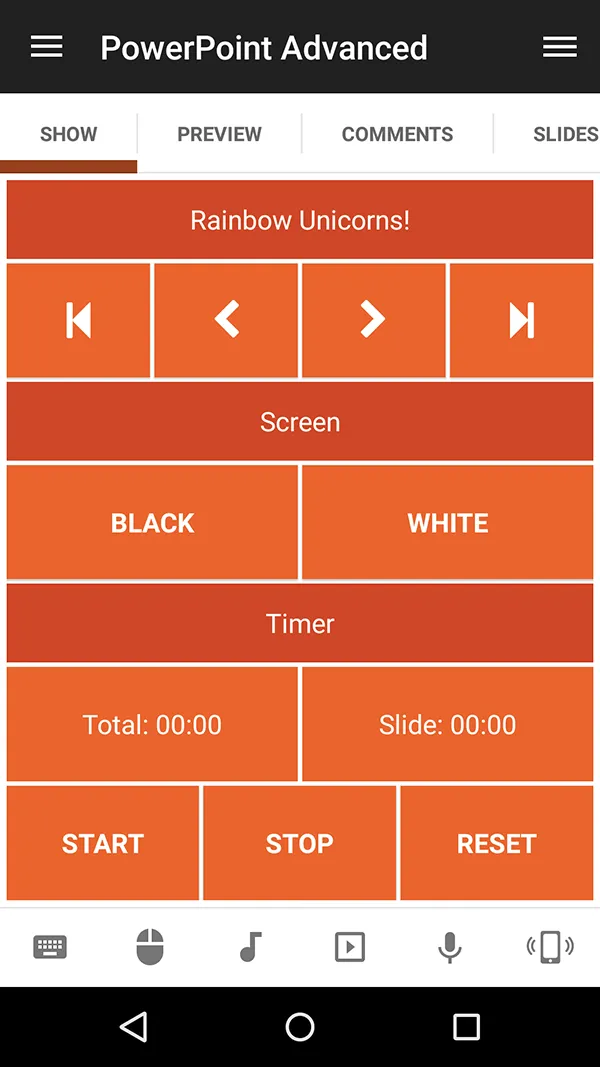
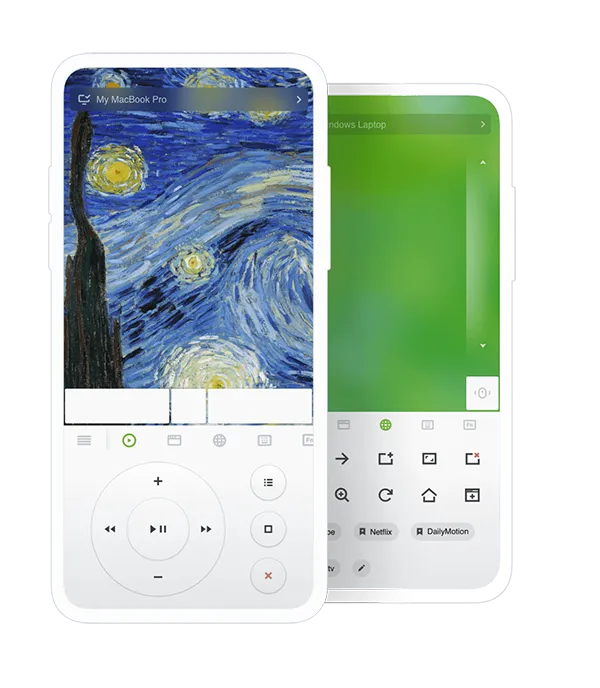
Unified remote and Remote Mouse
- Pros:
- Wide device compatibility: You can control your computer from almost any device.
- Affordable: Many of these apps are free or low-cost.
- Cons:
- Limited control options: These apps are essentially a replacement for a mouse and keyboard, so they lack specialized controls for presentations.
- No teleprompter integration: If you need a teleprompter to keep your speech on track, these apps won’t help much.
These apps work well if you’re on a budget or only need basic control, but they aren’t designed for advanced presentation workflows.
Prezi
Prezi is a cloud-based presentation tool that allows dynamic, non-linear presentations with zooming slides.
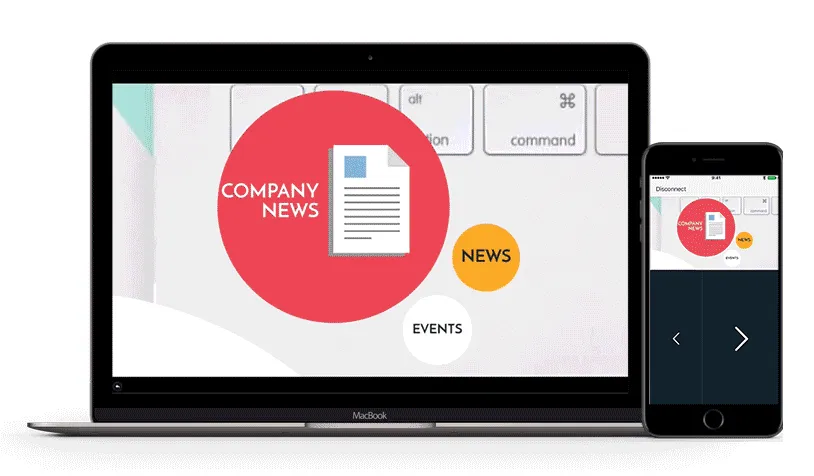
Prezi
- Pros:
- Visually dynamic: Prezi’s zoom feature allows for more engaging, visually stunning presentations.
- Cloud-based: You can access your presentations from anywhere, which is perfect for remote work.
- Cons:
- Learning curve: Prezi can be tricky to get the hang of if you’re used to traditional PowerPoint slides.
- No remote slide control: It lacks the advanced remote control features many users are looking for.
Prezi offers a fresh approach to presentations, but it doesn’t have the robust remote control and teleprompter integration that some users need.
OtO – A Great Alternative for Teleprompter and Remote Control
Now let’s talk about OtO. It’s a versatile tool for presentation control that also includes teleprompter functionality, making it especially useful for public speakers, journalists, or anyone who needs to read from a script while presenting.
OtO provides an easy way to control your PowerPoint presentations remotely while also offering teleprompter features.
OtO software
Pros:
- Teleprompter & Slide Control in One: OtO not only scrolls your text like a classic teleprompter but also lets you trigger PowerPoint slides directly from your script by placing action markers. This means your slides advance automatically as you read, keeping everything in sync.
- Local or Remote Slide Control: OtO can trigger slides on the same computer running PowerPoint or on a remote machine via the OtOSlides controller utility. This is ideal for complex setups where the presentation runs on a different device.
- Affordable & Flexible: OtO offers various pricing plans for individuals and teams, making professional-grade prompting accessible to all.
- Multi-Language Support: Perfect for international presentations, OtO supports multiple languages to help you adapt your script on the fly.
Cons:
- Not as well known: As a newer tool, OtO might not have the same level of user familiarity or support as more established options.
- Primarily for teleprompters: While OtO excels in this niche, it might not offer the same advanced presentation features (like visual dynamics) as Prezi.
OtO is a solid choice for people who need both teleprompter functionality and remote presentation control. Its flexibility and affordability make it appealing for individuals and teams alike.
CuePrompter
For those who only need a teleprompter, CuePrompter is a simple, free online tool that lets you input text and have it scroll on your screen. It’s a great tool if you don’t want to install any software.
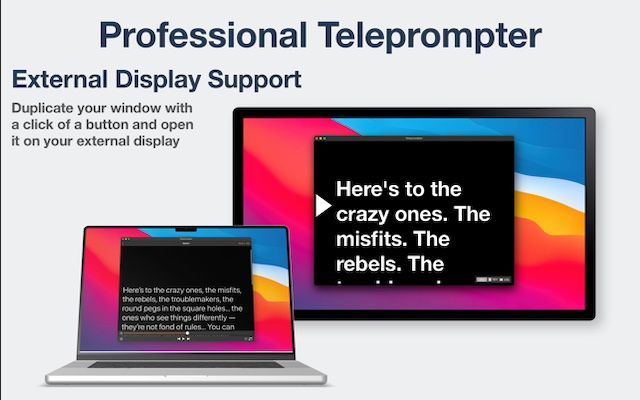
Cueprompter
- Pros:
- Free and easy to use: You can use it directly in your web browser without needing to install anything.
- Basic but effective: It’s a no-frills teleprompter solution.
- Cons:
- No remote control or integration: It’s only a teleprompter tool, so it lacks integration with PowerPoint or other presentation software.
- Limited features: Compared to OtO, CuePrompter is a very basic solution with no options for remote control or presentation management.
CuePrompter is great for simple teleprompter needs, but if you’re looking for a full-featured remote control solution, OtO or other options might be a better fit.
Which Tool Should You Pick?
Choosing the right tool comes down to your specific needs. If you just need basic remote control, apps like Unified Remote or Remote Mouse will do the job. For visually dynamic presentations, Prezi might be worth a look.
However, if you regularly use a teleprompter or need advanced remote control features, OtO is an excellent choice. It offers remote control for multiple computers, teleprompter integration, and flexibility at an affordable price.
Test out a few options and see which one fits your workflow best.